
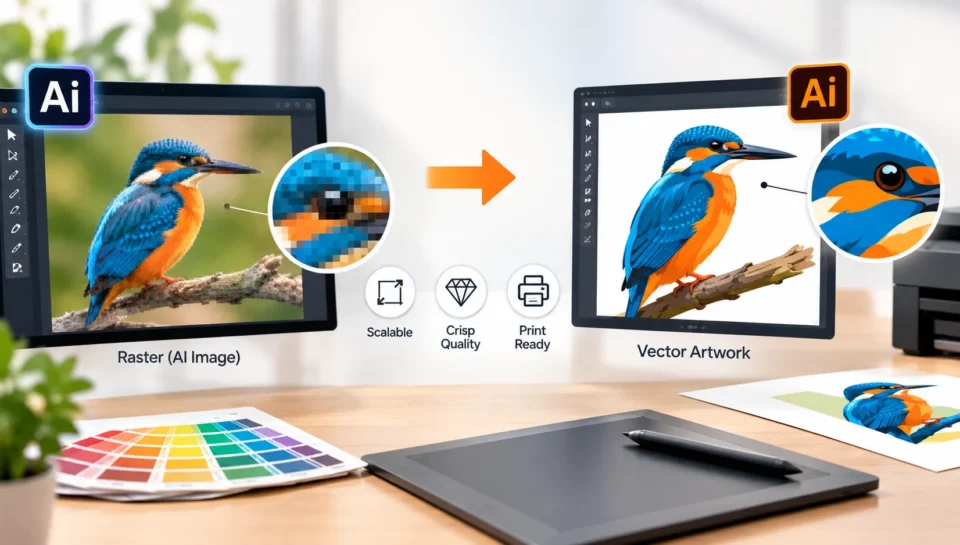
AI image generators make it easy to create illustrations, logos, icons, and packaging concepts. But when you need to resize an image, edit its shapes, or prepare it for professional printing, you may discover a limitation: the image is made of pixels rather than editable vector paths.
This is where AI image to vector conversion can help. Vectorization transforms suitable raster artwork into paths and shapes that can be edited and scaled without the pixelation associated with enlarging a raster image.
However, not every AI-generated image needs to be vectorized. A logo, simple illustration, or icon may benefit significantly, while a detailed photograph is often better kept as a raster image.
What Does AI Image to Vector Mean?
AI image to vector means converting an AI-generated raster image into vector artwork, either through automated tracing, AI-assisted conversion, or manual recreation.
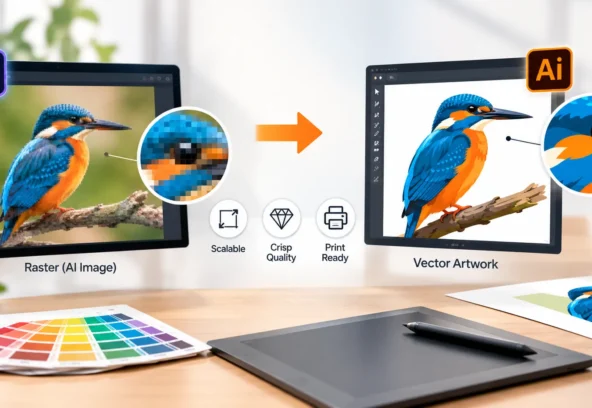
Raster images, such as JPG and PNG files, are made of pixels. Vector artwork uses paths, curves, and shapes to define its elements.
Adobe Illustrator’s Image Trace feature can convert raster images into editable vector graphics. Adobe also offers Concept to Vector, which can transform suitable raster images into editable vector artwork using prompts. The quality of the result depends on the source image and the intended design.
The goal is not simply to change the file extension. It is to create artwork that remains useful, editable, and appropriate for its intended application.
When Should You Convert an AI Image to Vector?
Vectorization is most useful when the artwork needs to stay sharp at different sizes or when individual design elements must be edited.
Consider converting an AI image to vector when you are working with:
- Logos and brand marks: These often need to appear on everything from small labels to large signs.
- Icons and symbols: Simple shapes can be easier to resize and edit as vectors.
- Illustrations: Flat illustrations and artwork with clear edges can often be converted successfully.
- Packaging graphics: Logos, icons, and selected decorative elements may benefit from editable vector paths.
- Print materials: Artwork that needs to be reproduced at multiple sizes may be easier to manage as vector graphics.
For example, if you generate a simple leaf illustration for a skincare label, vectorizing it can make it easier to adjust the shape, colour, and size without relying on a pixel-based image.
However, a photorealistic image of a person, food product, or landscape may lose its natural appearance when converted into vector shapes. In those cases, retaining the raster image is often the better choice.
5 Benefits of Converting AI Images to Vector Artwork
1. Scale Artwork Without Pixelation
One of the main advantages of vector graphics is scalability.
A raster image can become pixelated when enlarged beyond the detail available in its original file. Vector paths, on the other hand, can be resized without the same resolution limitations.
This is especially useful for logos, icons, and illustrations that need to work across packaging, brochures, retail displays, and signage.
2. Edit Shapes and Colours More Easily
A flattened AI-generated image can be difficult to edit. Changing one small element may require editing the entire image.
Vector artwork can provide greater control over individual paths, shapes, and colours, depending on how the file was created.
For example, a designer may be able to change the colour of an illustration, adjust a curve, or remove an unnecessary shape without regenerating the complete image.
3. Improve Artwork for Professional Printing
Vector artwork is useful for many commercial print applications because its paths remain sharp when resized.
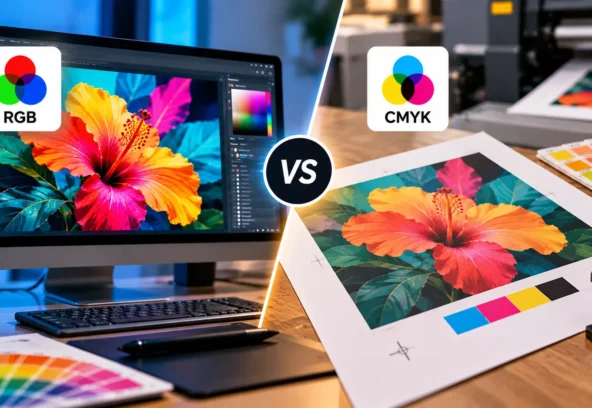
However, vectorization alone does not make a file completely print-ready. You may still need to check colour settings, document dimensions, bleed, fonts, and the printer’s required file format.
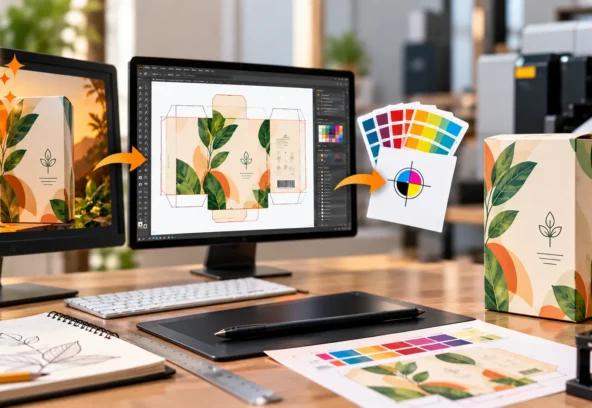
For packaging, the artwork may also need a dieline, separate finishing layers, and other production information.
4. Create Consistent Artwork Across Different Products
Brands often use the same graphic across multiple product sizes and packaging formats.
A vector illustration can be adapted more easily for different layouts, provided its design and structure are suitable for editing.
This is particularly useful when a business has several SKUs, product variants, or packaging sizes that need to follow the same visual identity.
5. Make Future Revisions Easier
Editable artwork can save time when a design needs updates.
A team may need to adjust a graphic’s colour, resize an icon, change a product variation, or prepare a new layout. Well-organised vector files make these changes easier to manage than a single flattened image.
How to Convert an AI Image to Vector
There are three common approaches: automated tracing, AI-assisted conversion, and manual vector recreation.
Method 1: Use Adobe Illustrator Image Trace
Adobe Illustrator’s Image Trace feature converts suitable raster images into editable vector artwork.
A basic workflow is:
- Open Adobe Illustrator.
- Place your AI-generated PNG or JPG into the document.
- Select the image and open Window → Image Trace.
- Choose a suitable tracing preset.
- Adjust the tracing settings to improve the shapes and colours.
- Review the preview and correct unwanted details.
- Expand the result to create editable vector paths.
- Clean up the paths and save the artwork in the required format.
The final cleanup is important. Automatic tracing can create too many anchor points, uneven curves, or unnecessary shapes, particularly when the source image is complex or low quality.
Method 2: Use AI-Assisted Vector Conversion
AI-assisted tools can transform suitable raster images into vector-style artwork with less manual tracing.
For example, Adobe Illustrator’s Concept to Vector feature can generate editable vector artwork from raster images using prompts.
This approach can be helpful when you want to simplify an illustration or create a more stylised version of an existing visual.
Always inspect the output. AI-assisted conversion may change details, colours, proportions, or shapes, so it should not be treated as a perfect reproduction of the original.
Method 3: Recreate the Artwork Manually
For important brand assets, manual vector recreation may be the better option.
A designer can redraw the essential shapes, curves, and lines using vector tools instead of relying entirely on automatic conversion.
This approach is particularly valuable for logos, technical graphics, and packaging elements where accuracy matters.
If the AI-generated image contains an inaccurate brand logo or distorted text, use the original approved assets rather than trying to preserve the generated version.
Which AI Images Should Not Be Vectorized?
Not every image benefits from vector conversion.
| Image type | Recommended approach |
| Simple logo or icon | Vectorize or recreate as vectors |
| Flat illustration | Usually suitable for vectorization |
| Product symbol | Vectorize if the design is simple and clear |
| Photorealistic product image | Usually retain as raster artwork |
| Detailed food photography | Retain as a high-quality raster image |
| Complex gradients and textures | Assess whether vectorization will preserve the appearance |
| Distorted AI-generated logo | Recreate using the approved brand artwork |
The best approach is to choose the format based on how the image will be used, not simply because vector graphics are scalable.
How Langoor Designs Can Help With AI Image Vectorization
Langoor Designs provides artwork production, image vectorization, image optimisation, and prepress services for brands working with packaging and other printed materials.
Its website highlights advanced image vectorization and optimisation, alongside technical image correction, quality assurance, and production-ready artwork preparation.
For businesses using AI-generated visuals, this type of support can help turn a rough concept into artwork that is easier to edit, adapt, and prepare for production.
The team can assess which elements should be vectorized, which should remain raster images, and what additional preparation is required before printing.
If your AI-generated graphics need professional refinement, visit Langoor Designs to explore its packaging artwork and production services.
Frequently Asked Questions
Can an AI-generated image be converted to vector?
Yes. Suitable raster images can be converted using image-tracing software, AI-assisted tools, or manual vector recreation. The quality depends on the source image and the complexity of the design.
Does vectorizing an AI image improve its resolution?
Vectorization creates scalable paths for the elements that are converted. It does not automatically improve every part of the original image, especially photographs and complex textures that remain raster-based.
Is SVG better than PNG for printing?
SVG is a vector format that works well for scalable graphics, but it is not automatically the best delivery format for every print job. Many commercial printers request a print-ready PDF or another specified format. Always confirm the requirements.
Can I vectorize an AI-generated logo?
Yes, but if the image is intended to represent an existing brand, use the approved logo artwork whenever possible. Recreating the logo accurately is generally preferable to tracing a distorted AI-generated version.
Does vector artwork always look better?
No. Vector artwork is excellent for many logos, icons, and illustrations, but converting a detailed photograph into vector shapes can reduce its natural appearance. The right format depends on the visual and its intended use.
Is vectorized artwork automatically print-ready?
No. You may still need to prepare colours, fonts, document dimensions, bleed, dielines, and other production requirements according to the printer’s specifications.
Final Takeaway
Converting an AI image to vector is useful when artwork needs to remain sharp at different sizes, be edited more easily, or work across multiple packaging and print formats.
Start with simple graphics, logos, icons, and illustrations. Use automated tracing or AI-assisted tools where appropriate, and consider manual recreation when accuracy is important.
For photographs and highly detailed visuals, a high-quality raster image may be the better choice.
The key is to choose the right artwork format for the job. Vectorization can make suitable AI-generated graphics more flexible, but careful editing and production checks are still essential for professional results.